

language

How to game share on ps5?
Time of issue:2025-06-06
Enabling gameshare on your best PS5 games may be even easier than enabling the feature on a PS4.
That is if you familiarize yourself with the updated terminology. On the newer console, the feature is called “Console Sharing and Offline Play.” Here’s a quick guide to set it up.
Step 1: Log in to your PlayStation Network account on your PS5.
Step 2: From the main menu, click the Gear icon located between the magnifying glass and your avatar to access the Settings tab.
Step 3: Select Users and Accounts.
Step 4: Scroll down and select the Other option.
Step 5: Select Console Sharing and Offline Play. If the text says this option is enabled on your PS5, that means you’re not able to gameshare and need to select disable.
Step 6: Log out of your PSN account on your PS5.
Step 7: Log in with your PSN on the console you want to gameshare with.
Step 8: Navigate to the same menu and select Don’t Disable in the Console Sharing and Offline Play menu.
Step 9: Log out of your PSN on this console.
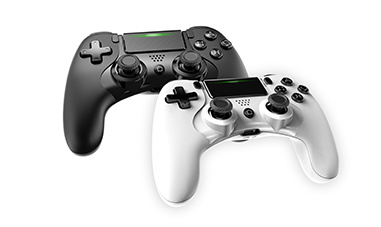
Playstation Controller
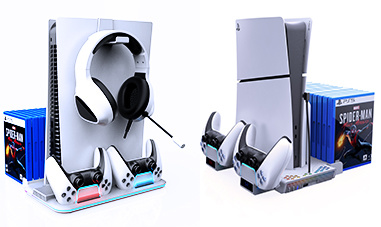
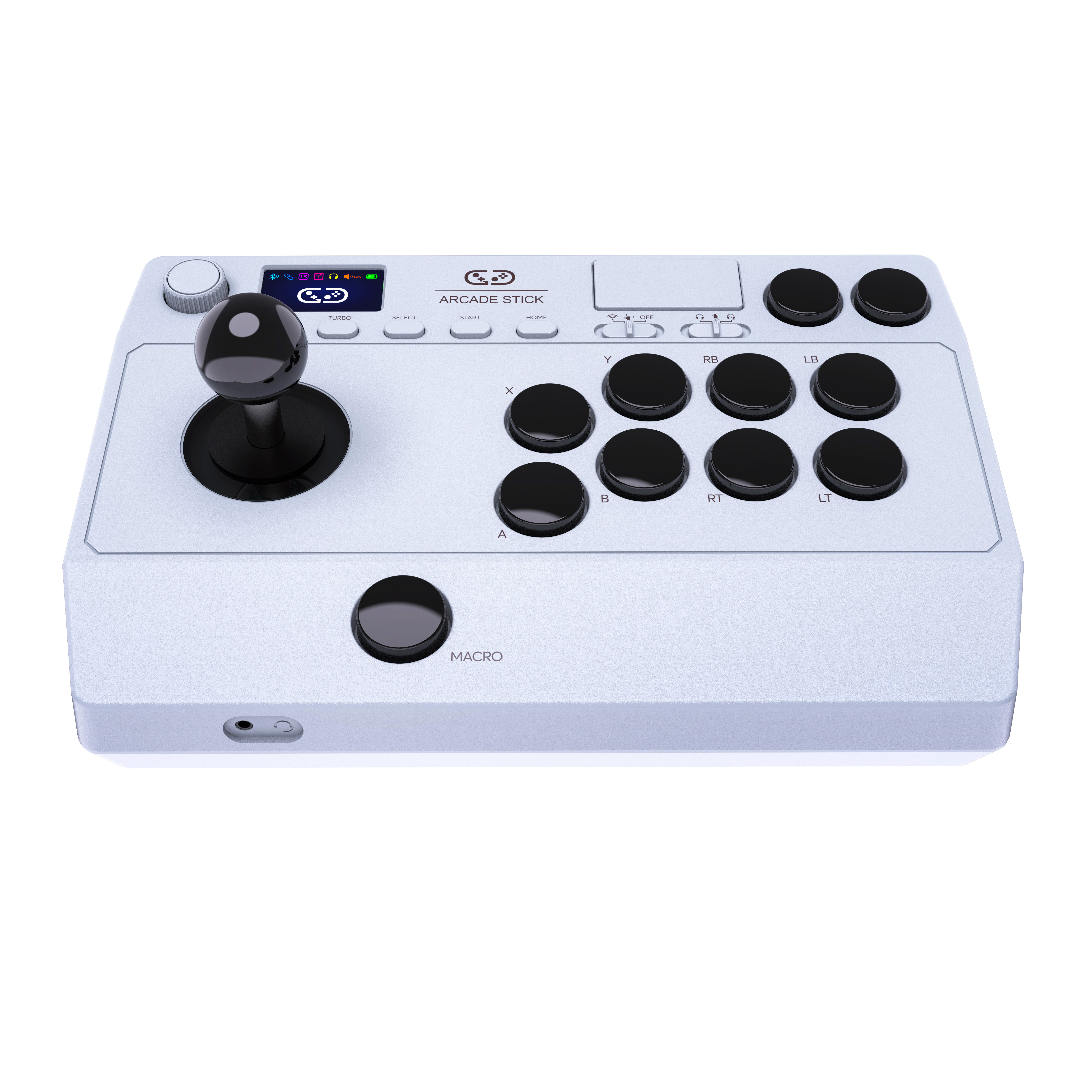
The main products include game controllers and accessories compatible with PlayStation, Nintendo, Microsoft, Android & iOS, PC and other game platforms.




After the person you’re gamesharing with logs back in via their PSN account, they will have access to any of your compatible games from their PS5. Use this feature wisely. As far as we know, you can only gameshare with one other person, so make the decision a good one. If worst comes to worst, you should be able to shut down the feature and then try it all again from the beginning to share it with someone else.
You may be wondering if the gameshare feature runs both ways. The answer is yes — whoever you share with will have access to your library, and you’ll have access to any of the games on their console.
More Information
How to delete games on nintendo switch
2025-08-14
How to connect a ps4 controller to ps4
2025-08-13
Address:
Floor 3, Saitaike Electronic , Dong Shan Gang No 1 Technology Park, Xi Xiang Street ,Baoan District,518000 Shenzhen City,Guangdong Province,China
TEL:+86-0755-27366466
WEB:www.saitake.com
E-mail:info@saitake.com